Steal this prompt: consistent anime characters

Character drift happens when every scene asks the model to invent the character again. The fix is to define the anime character once, store that reference as a global variable, and point every video scene back to it. In this walkthrough, GPT Image 2.5 creates the character sheet and Seedance 2.5 handles the motion. Each scene prompt describes only what changes: the action, camera movement, and environment.
One character reference, many scenes
Define the character, visual style, and repeatable content concept.
Generate one canonical image that establishes the face, mask, clothing, colors, and weapons.
Store the sheet once in Globals so every creation card can use the same source.
Change the action and camera while keeping the anime character anchored.
What you will learn
- How to turn a character sheet into a reusable global media variable.
- How to prove that a video layer is linked to the global Character reference.
- How to select a global through the Variables tab instead of attaching a static asset.
- How to separate fixed identity details from changing scene instructions.
- How to duplicate the workflow and produce new scenes without rebuilding it.
Why anime characters drift between scenes
A text prompt is not a persistent identity. Even when the wording stays similar, each generation can reinterpret the face, silhouette, clothing, colors, and accessories. Longer prompts often make the problem worse because the character description competes with the action and camera instructions.
A reusable reference changes the job. The image model decides what the anime character looks like once. The video model then receives that visual reference alongside a scene-specific instruction. Identity stays fixed while motion changes.
| Keep fixed | Change by scene |
|---|---|
| Face and mask | Action |
| Armor and clothing | Camera movement |
| Color palette | Environment |
| Weapons and silhouette | Lighting and pacing |
How to build the reusable character workflow
1. Start with the finished sequence
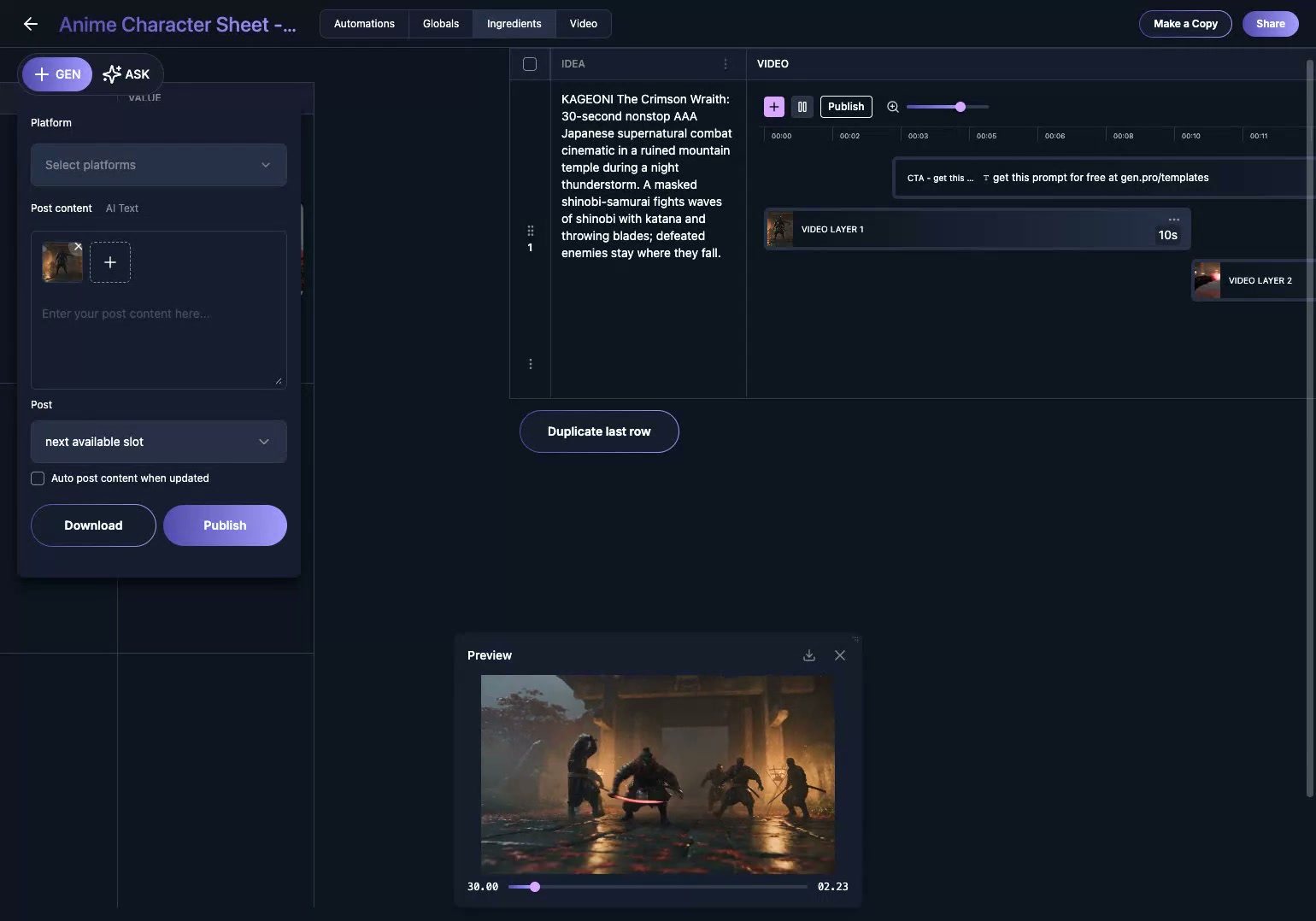
Play the completed video first. Check whether the same anime character reads clearly across cuts, camera angles, movement, and lighting changes. This is the outcome the workflow must protect. A good reference setup is invisible to the viewer; they simply see the same character in every scene.
2. Store the character sheet in Globals
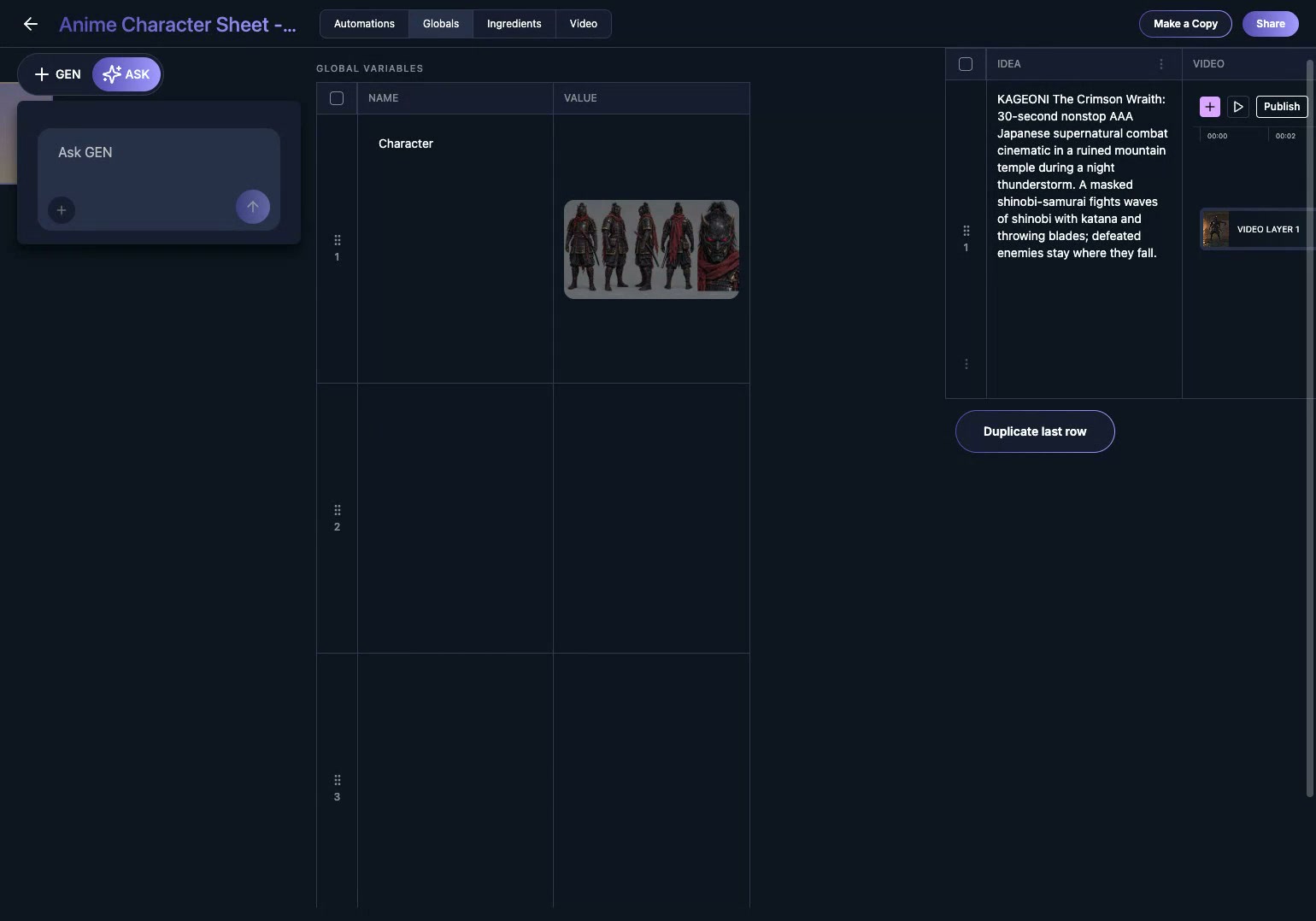
Open the Globals tab. The character sheet should be stored once as a media variable named Character. It is not merely a text description. The variable contains the actual reference image that establishes the anime character's appearance.
This becomes the source of truth for the Vidsheet. If the design changes later, replace the image in one place instead of editing every scene separately.
3. Open a scene's creation card
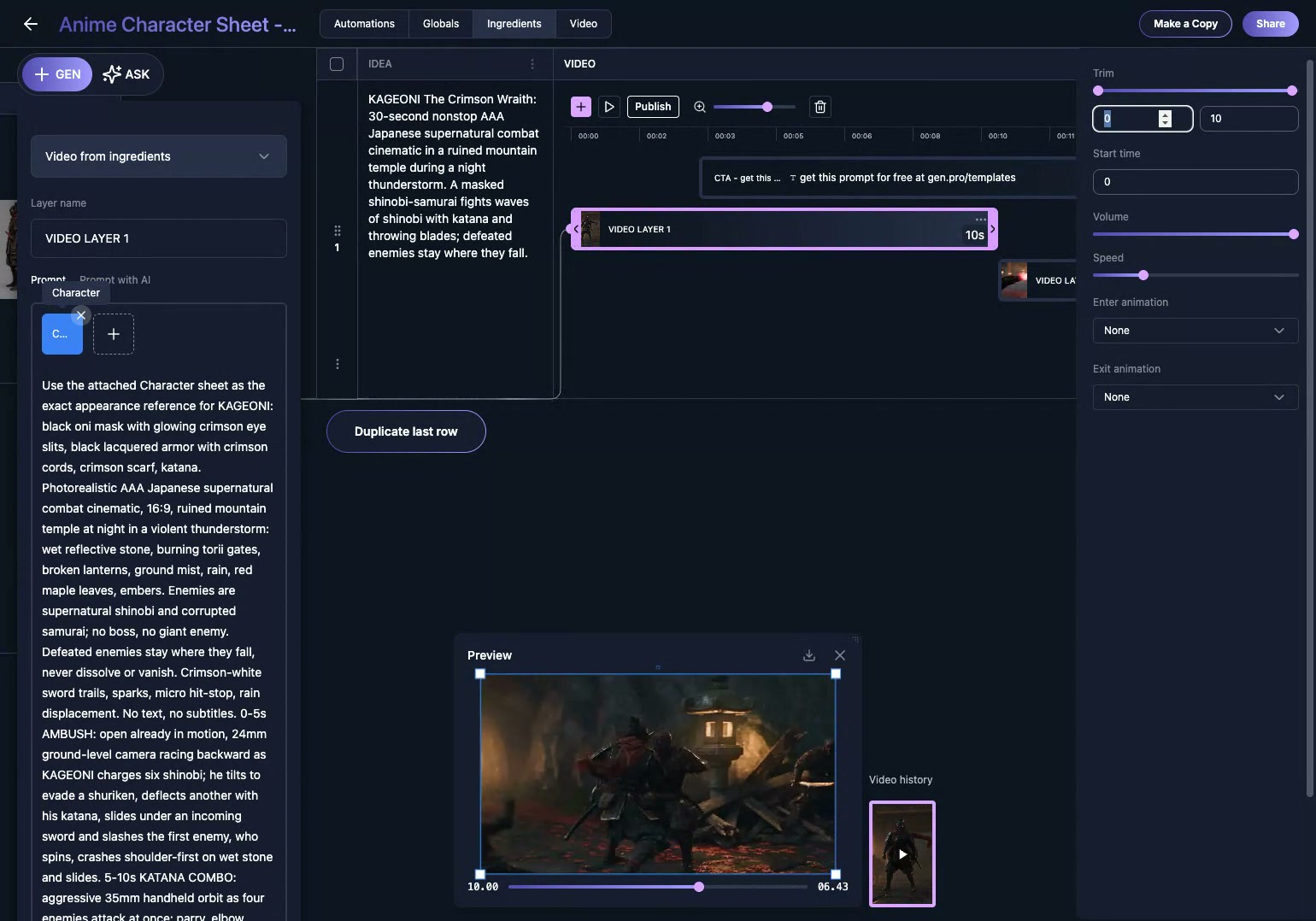
Select the first generated video layer and open its creation card. The layer uses Video from Ingredients, which means it can combine the written scene prompt with attached media references.
Look for the Character chip inside the card. That chip is the evidence that the layer is connected to the global character sheet. Seeing the same words inside the prompt is not enough. The media variable must be attached.
4. Select Character from the Variables tab
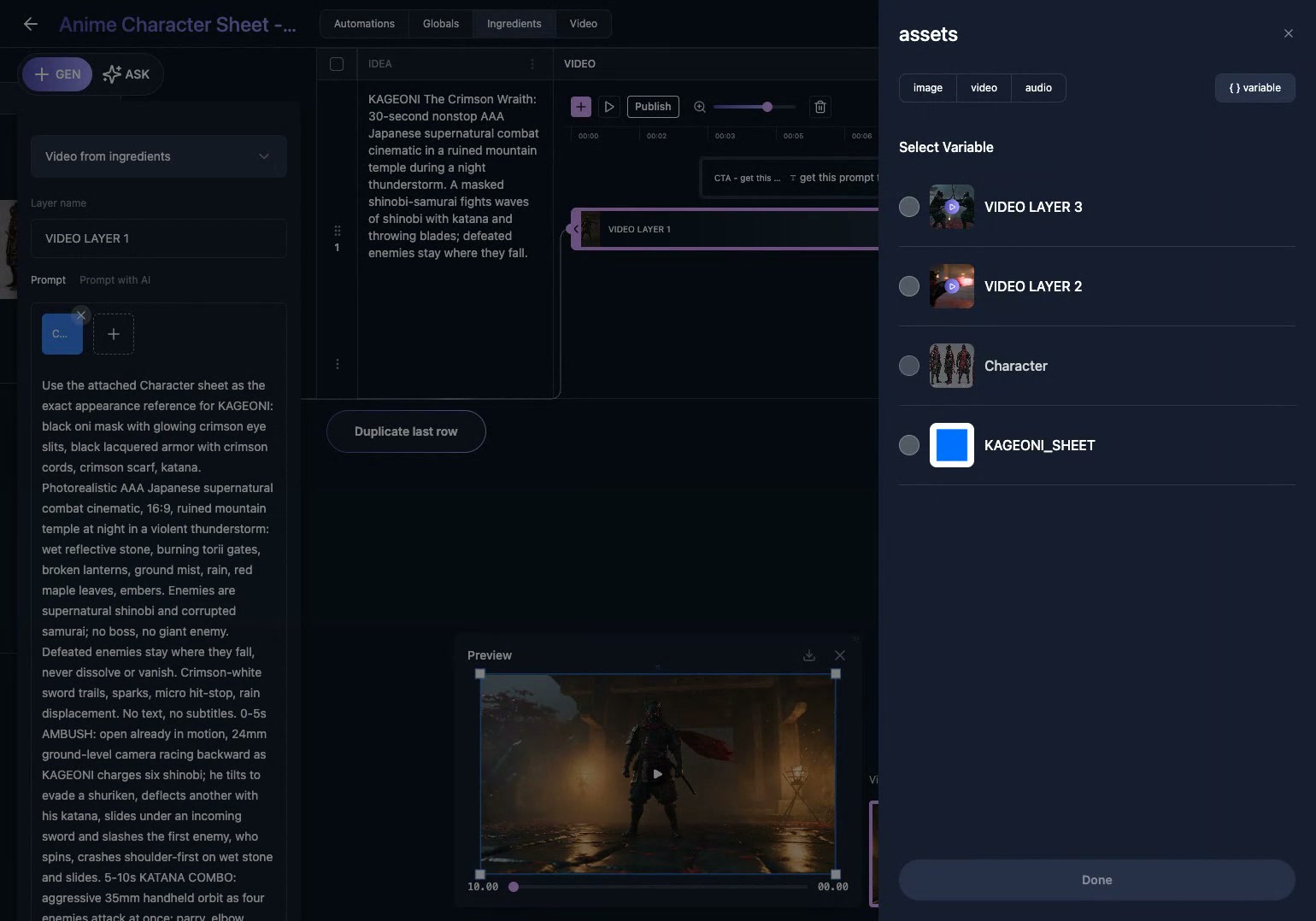
Open the attachment picker, switch to Variables, and choose Character. Selecting it from Variables creates a reusable link to the global. Picking the same image from the asset library would pin a separate static asset to that layer.
The distinction matters when the workflow grows. A global reference can feed many scenes and can be replaced centrally. A pinned asset has to be managed layer by layer.
5. Write the scene prompt around what changes
Once Character is attached, the prompt can focus on motion. Describe the action, shot size, camera path, environment, timing, and effects. Do not rewrite the character's entire appearance inside every scene.
This separation makes the workflow easier to debug. If the identity drifts, inspect the reference and its binding. If the movement is wrong, edit the scene prompt. You know which input owns which part of the result.
6. Reuse the same reference across every scene
Open the next video layer and confirm that it points to the same Character global. The action can be completely different, but the reference remains unchanged. Repeat that check for every scene in the sequence.
When the row works, duplicate it. Replace the action and camera instructions, keep the Character binding, and generate the next variation. You are reusing a working production system instead of rebuilding a prompt stack from scratch.
Common mistakes
Describing the character again in every prompt
This introduces small wording changes and gives the model competing identity instructions. Keep the detailed appearance in the character sheet.
Choosing the image from Assets instead of Variables
The image may look identical, but the workflow loses its global connection. Use the Variables tab and verify that the Character chip appears on the creation card.
Checking only the first frame
A character can look correct at the start and drift during motion. Review the full scene and compare the character across cuts.
Changing identity and action at the same time
When both inputs change, it becomes hard to diagnose the result. Keep the reference fixed while testing scene prompts.
Frequently asked questions
Does every scene need its own character sheet?
No. The point of the global variable is to reuse one approved character sheet across every relevant scene.
Can I replace the anime character later?
Yes. Replace the media stored in the Character global, then regenerate the dependent scenes. You do not need to attach a new image to every layer.
Why not put the full character description in every prompt?
Text can be interpreted differently on every generation. A visual reference gives the video model a clearer identity anchor and keeps the scene prompt focused.
Can the same setup work for products or human creators?
Yes. The mechanism is the same: store the approved visual reference once, bind it to every dependent creation card, and vary only the scene instructions.
Turn one character into a repeatable content system
GEN helps you create 30 days of content in 30 minutes. A global character sheet is one part of that system: define the anime character once, connect it to every scene, and duplicate the workflow whenever you need another variation.