Steal This GPT Image 2.5 + Seedance 2.5 AI Video Template
This extreme-sports POV workflow shows how GPT Image 2.5 can lock the look of an AI video before Seedance 2.5 adds motion. The template creates an extreme skateboarding clip: first a controlled opening frame, then a cinematic action sequence, then a second variation from the same connected workflow. Copy it, replace the prompts, and turn it into your own concept.
Steal this GPT Image 2.5 + Seedance 2.5 template
From extreme-sports concept to finished AI video
Choose the skateboard scene, action, and extreme-sports POV.
Set the subject, camera, lighting, composition, and environment.
Create the controlled image that becomes the video's first frame.
Turn the exact frame into cinematic movement and action.
Change the creative direction without rebuilding the workflow.
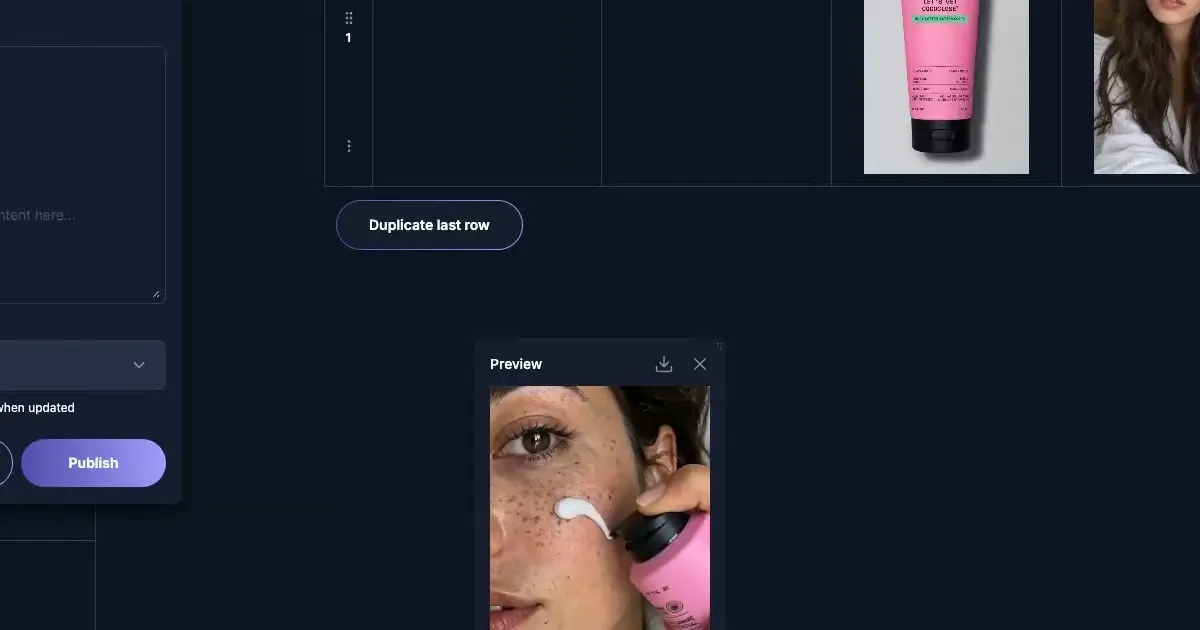
The useful part is the connection between models. Instead of downloading the opening image and rebuilding the project elsewhere, the frame stays attached to the Seedance video cell on the same row. You can inspect the prompts, change either model, review the timeline, and reuse the production structure without reproducing the same creative.
Here’s what you’ll learn
- What GPT Image 2.5 and Seedance 2.5 can do together
- How to copy the extreme skateboarding template into your workspace
- How to direct a controlled opening frame with GPT Image 2.5
- How Seedance 2.5 turns that exact frame into cinematic motion
- How to change the prompt and create a distinct second variation
What GPT Image 2.5 + Seedance 2.5 can do
A Vidsheet works like a spreadsheet for content production. Each row represents one piece of content. The columns hold the idea, generated image, video timeline, final output, and publishing controls.
The important part is not the grid itself. It is the connection between each stage. GPT Image 2.5 establishes the skateboarder, point-of-view camera, environment, lighting, and composition. That exact generated image becomes the first frame for Seedance 2.5, which adds the drop, camera movement, environmental motion, and cinematic pacing. The finished row can then be duplicated so a new prompt can produce a distinct action sequence without rebuilding the workflow.
Together, the models can produce AI UGC clips, product moments, cinematic action shots, character-led stories, and visual variations while keeping the source prompt and opening frame visible. GEN acts as the all-in-one AI video editor and content automation layer that keeps those creative steps connected from prompt to post.
TL;DR
- Lock the visual direction with a strong opening image.
- Pass that image directly into the video workflow.
- Keep prompts, models, media, and publishing in one row.
- Duplicate the structure, then change the concept and creative details.
- Change the subject, setting, action, and camera direction before generating a second version.
Step-by-step: steal and customize the template
1. Make a copy of the template
Start by copying the working Vidsheet into your own GEN workspace. This protects the public version and gives you a safe copy with the model connections, prompts, and video structure already in place.
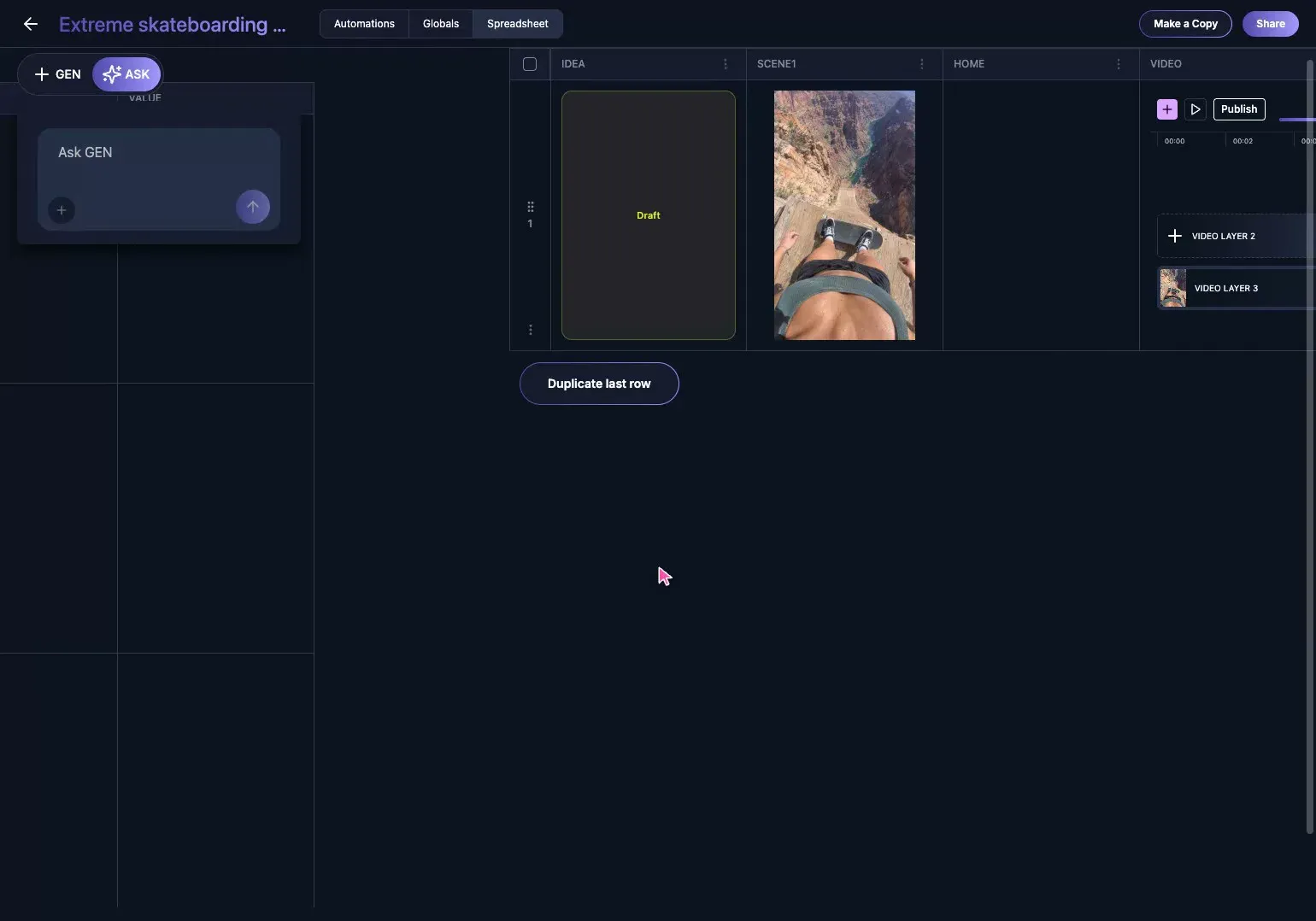
Steal the Extreme Skateboarding GPT Image 2.5 + Seedance 2.5 template.
2. Understand what one row controls
Each row is one complete content unit. In the tutorial, the row holds the idea, the GPT Image output, the Seedance video workflow, and the final publishable asset.
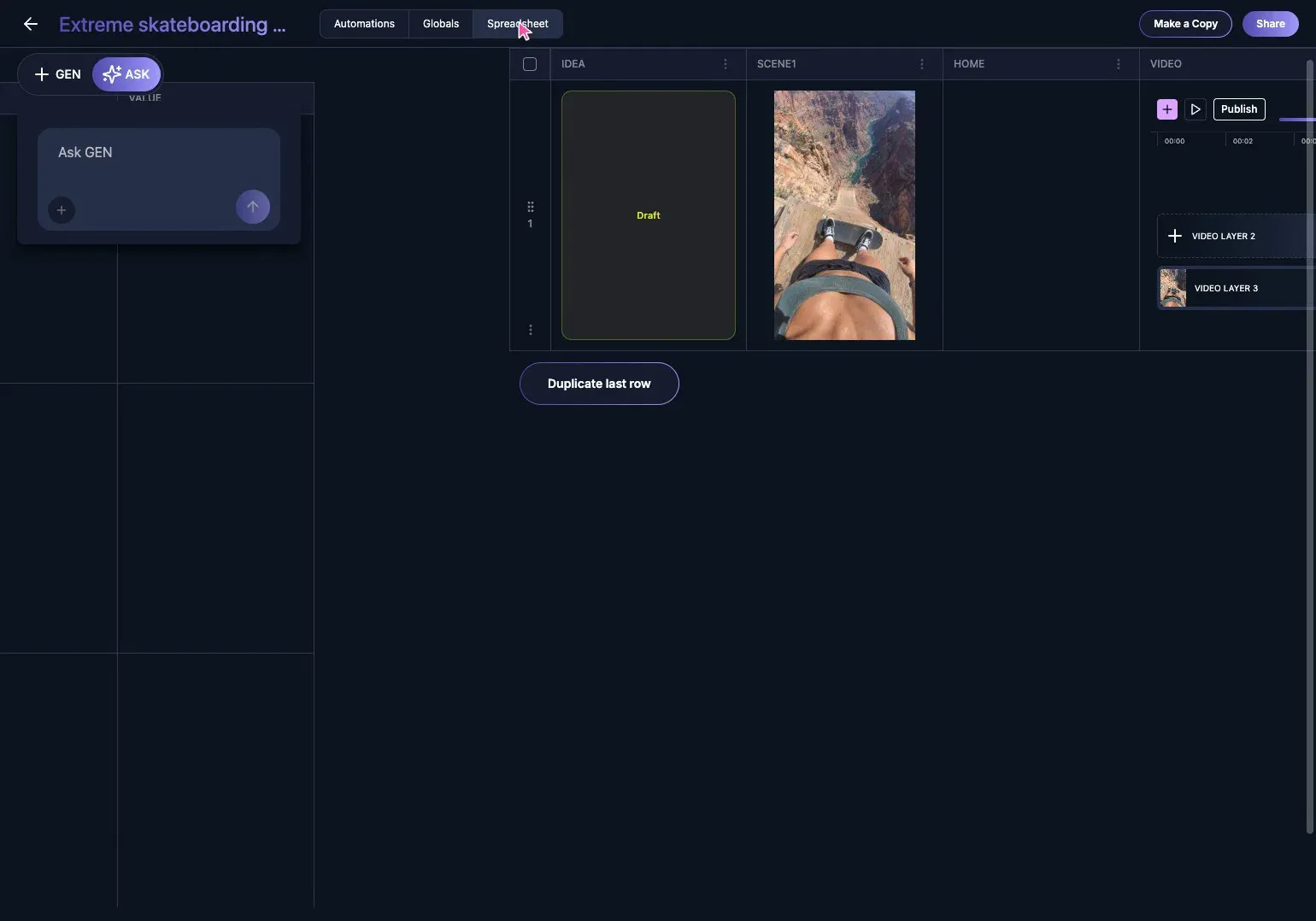
This is what removes repetitive setup. You are not opening a new project and reconnecting every input for each video. You are changing the ingredients inside an existing production system.
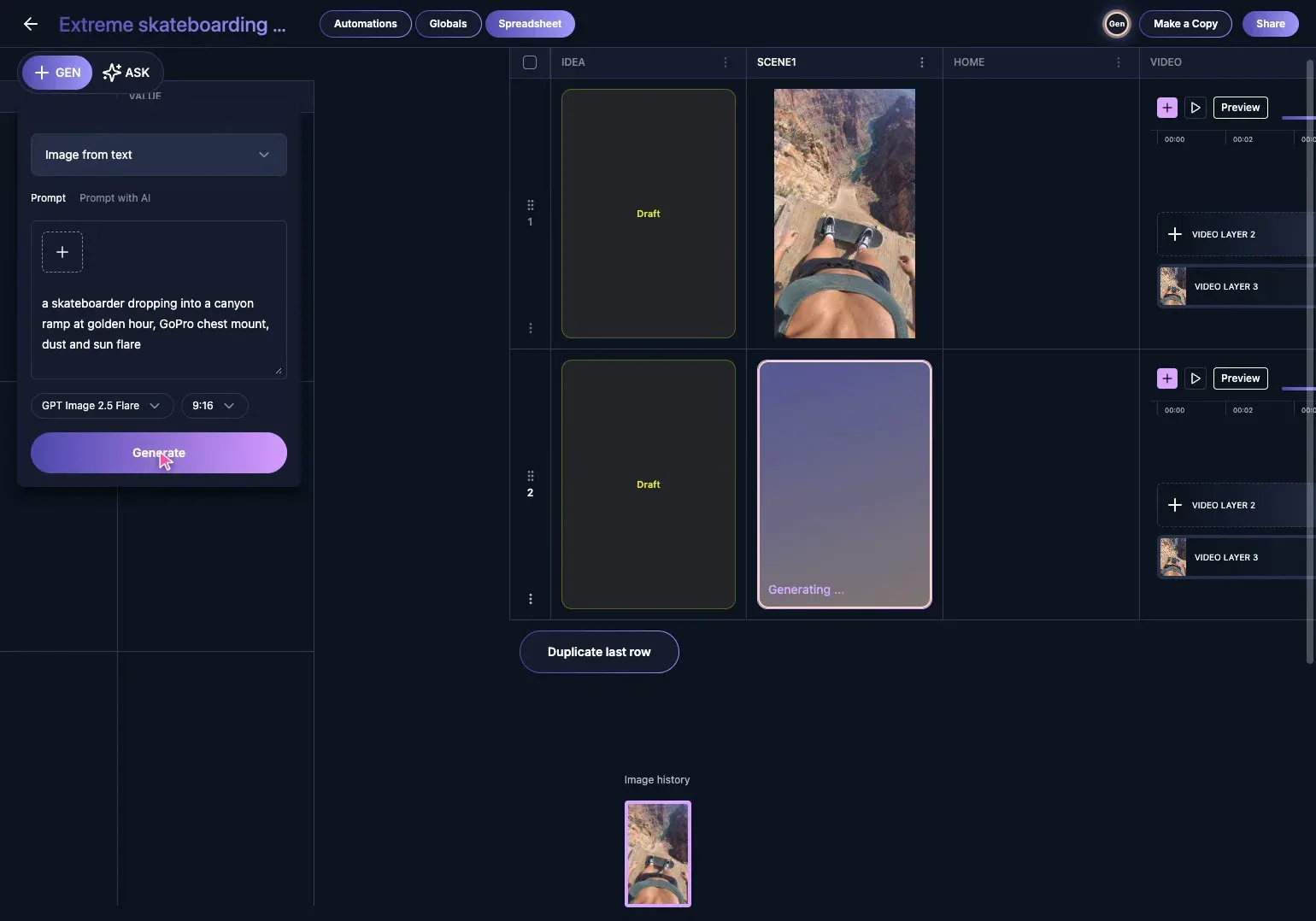
3. Edit the image prompt
Open the image cell to reveal its creation card and prompt. The prompt controls the subject, camera, lighting, composition, and visual style of the opening frame.
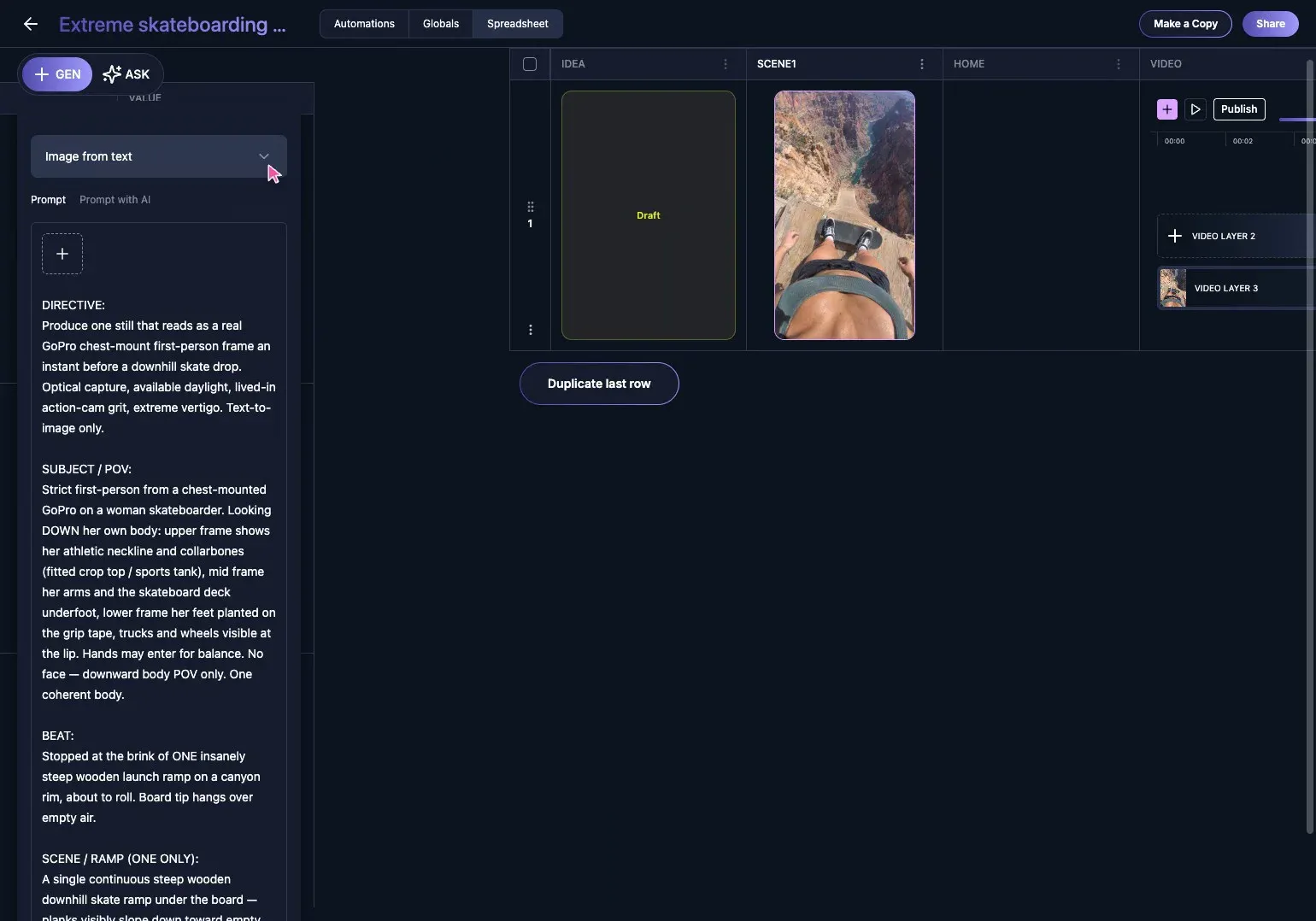
Write enough detail to establish the visual rules, but keep the concept easy to vary. Separate the reusable craft direction from the specific scene so the next row can retain the look while changing the idea.
4. Choose the image model and generate the opening frame
Select the image model that fits the job. Here, GPT Image 2.5 creates the first frame for an extreme skateboarding scene.
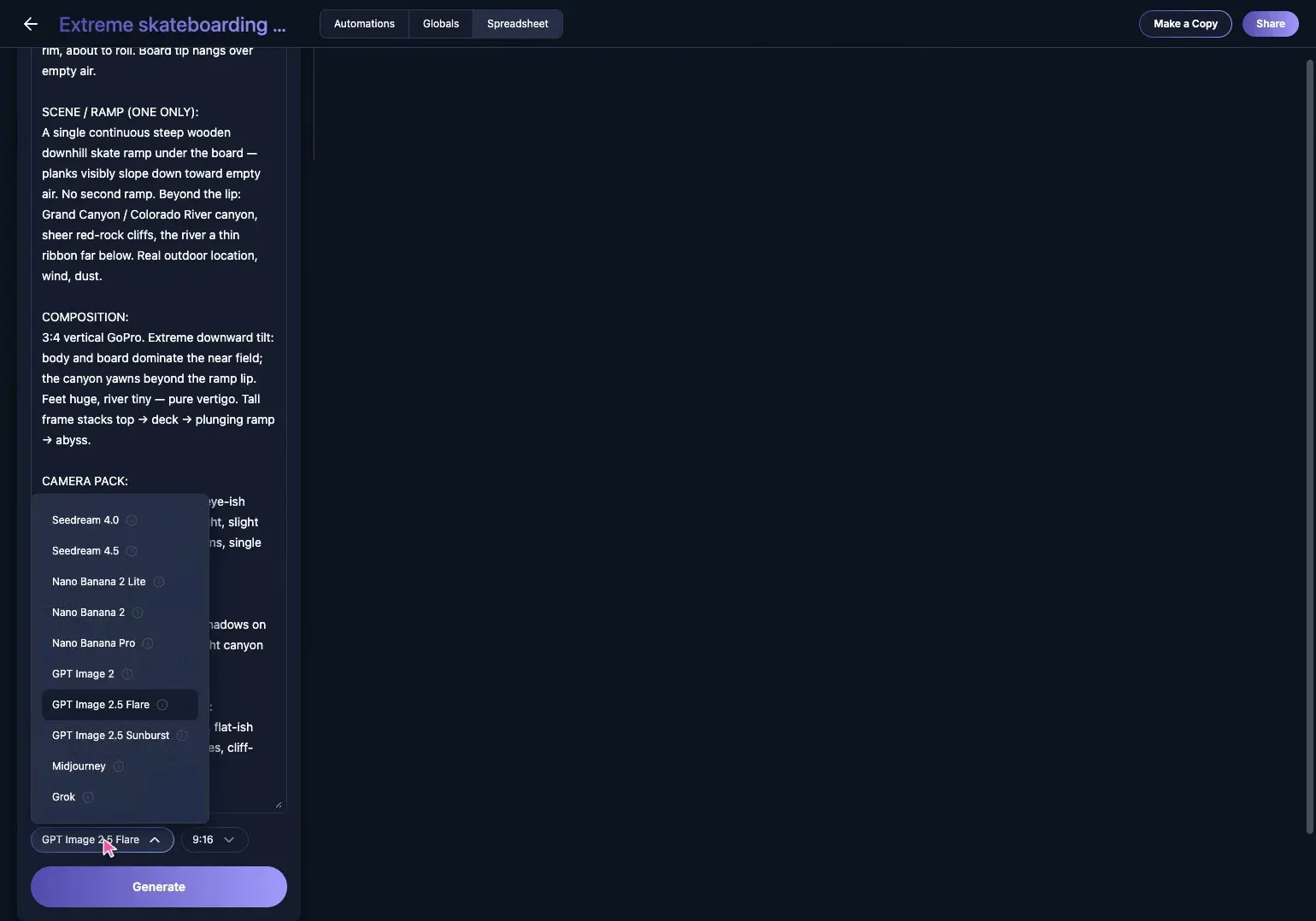
The opening image is more than a thumbnail. It gives the video model a concrete visual starting point, which helps reduce character, wardrobe, environment, and composition drift.
5. Pass the image into the video workflow
Keep the generated image connected to the video cell on the same row. Seedance 2.5 can then use it as the opening frame instead of beginning from an unrelated text-only generation.
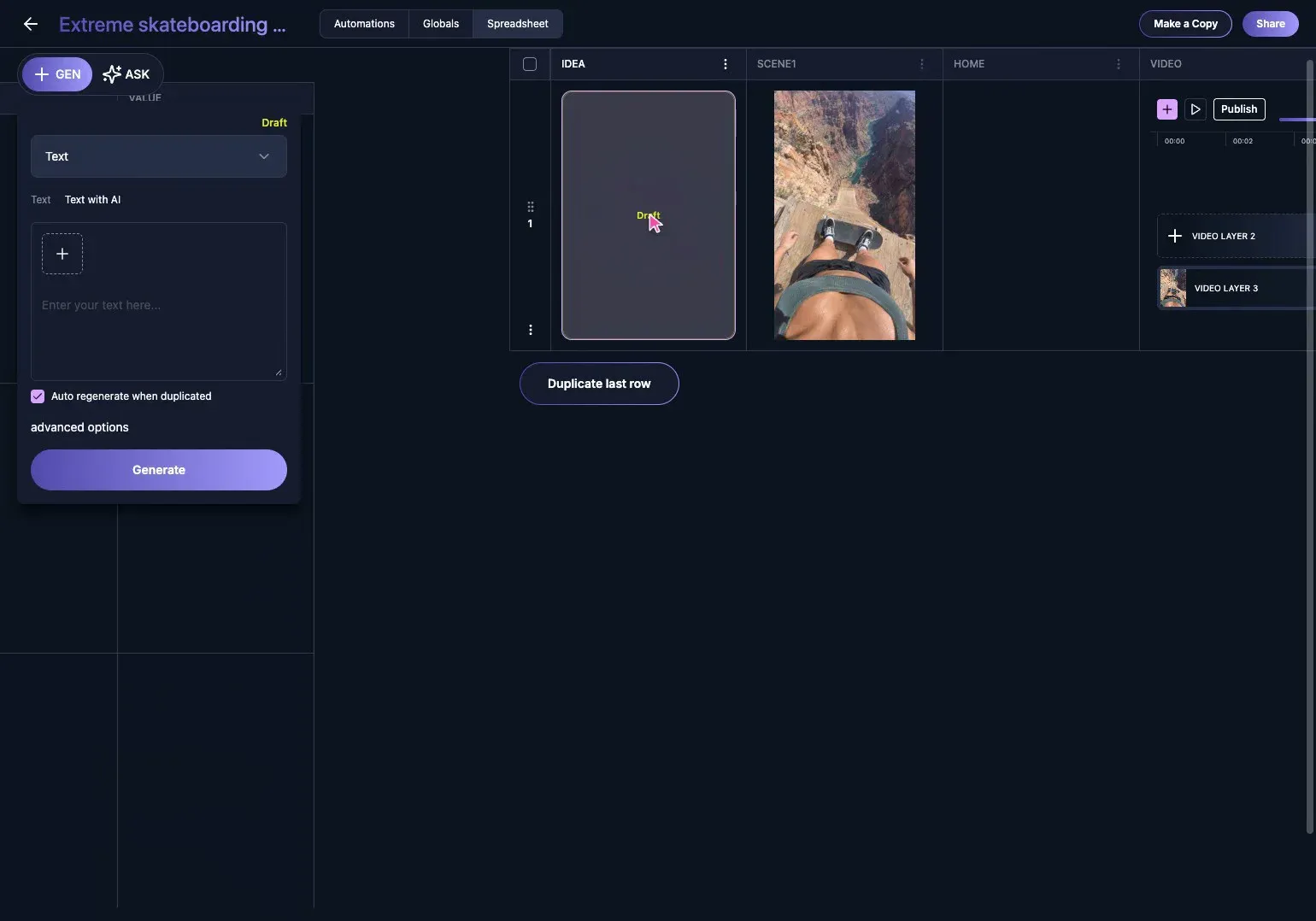
This is the core of consistent AI video production: decisions made upstream continue into the motion step instead of being reinterpreted from scratch.
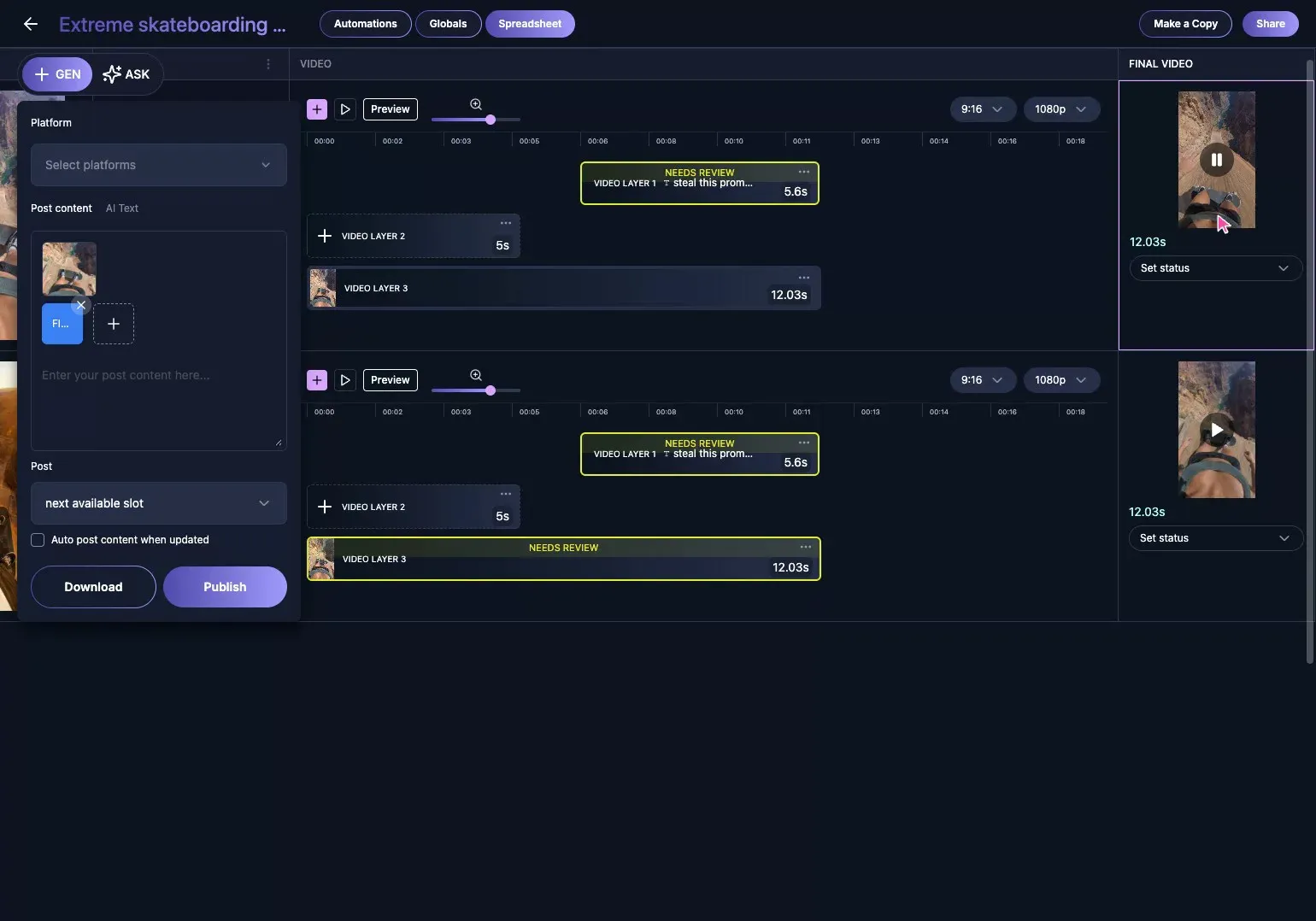
6. Build and review the video timeline
Open the video timeline to review the generated motion. The timeline can hold multiple scenes, text, captions, and other layers while preserving the row’s connected inputs.
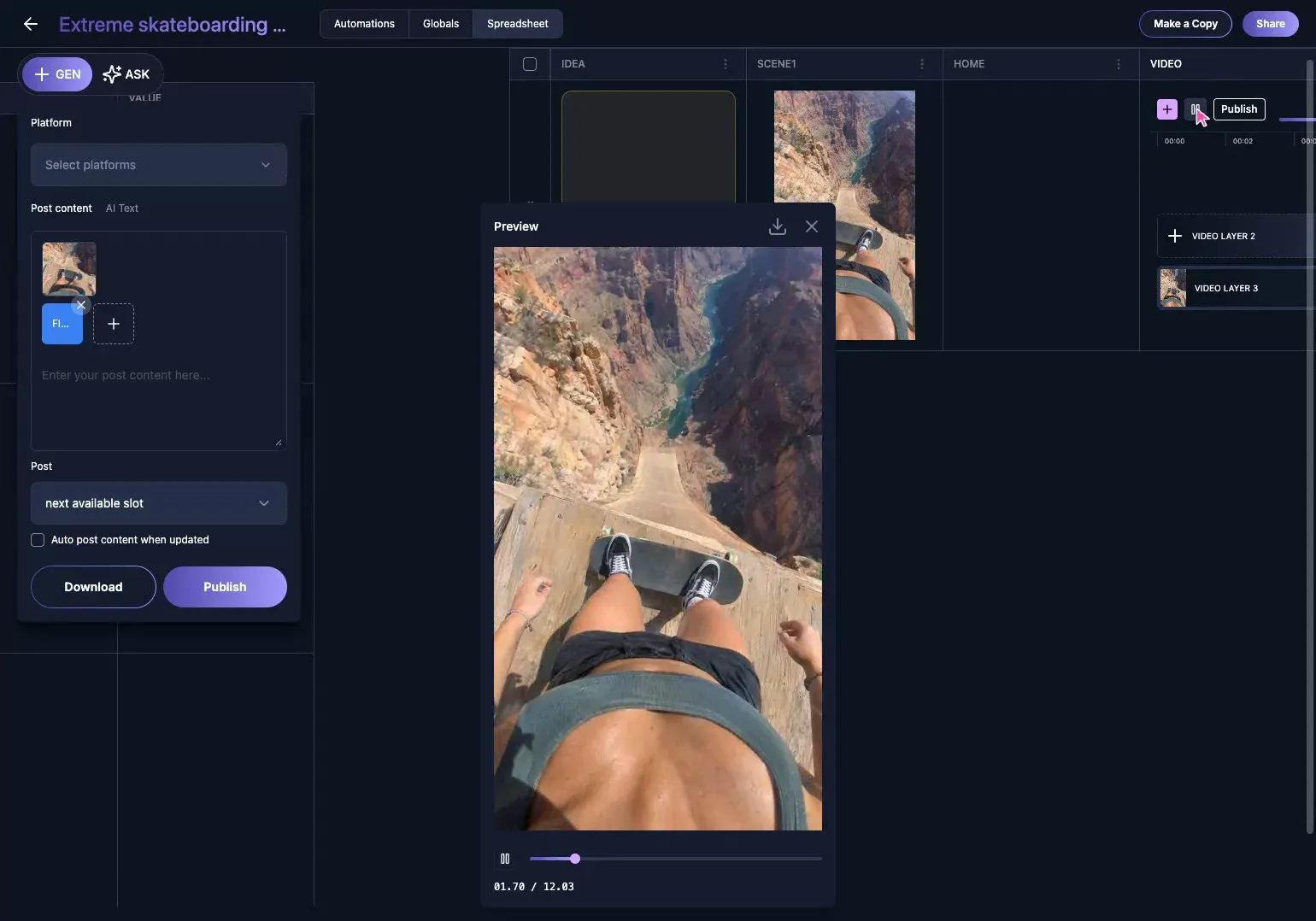
Review the transition from the first frame into motion. If the identity or environment drifts immediately, improve the opening image or simplify the motion prompt before adding more scenes.
7. Duplicate the proven row
Once the workflow produces a useful result, duplicate the row. The duplicate carries forward the structure and model configuration, saving the mechanical work that does not need to change.
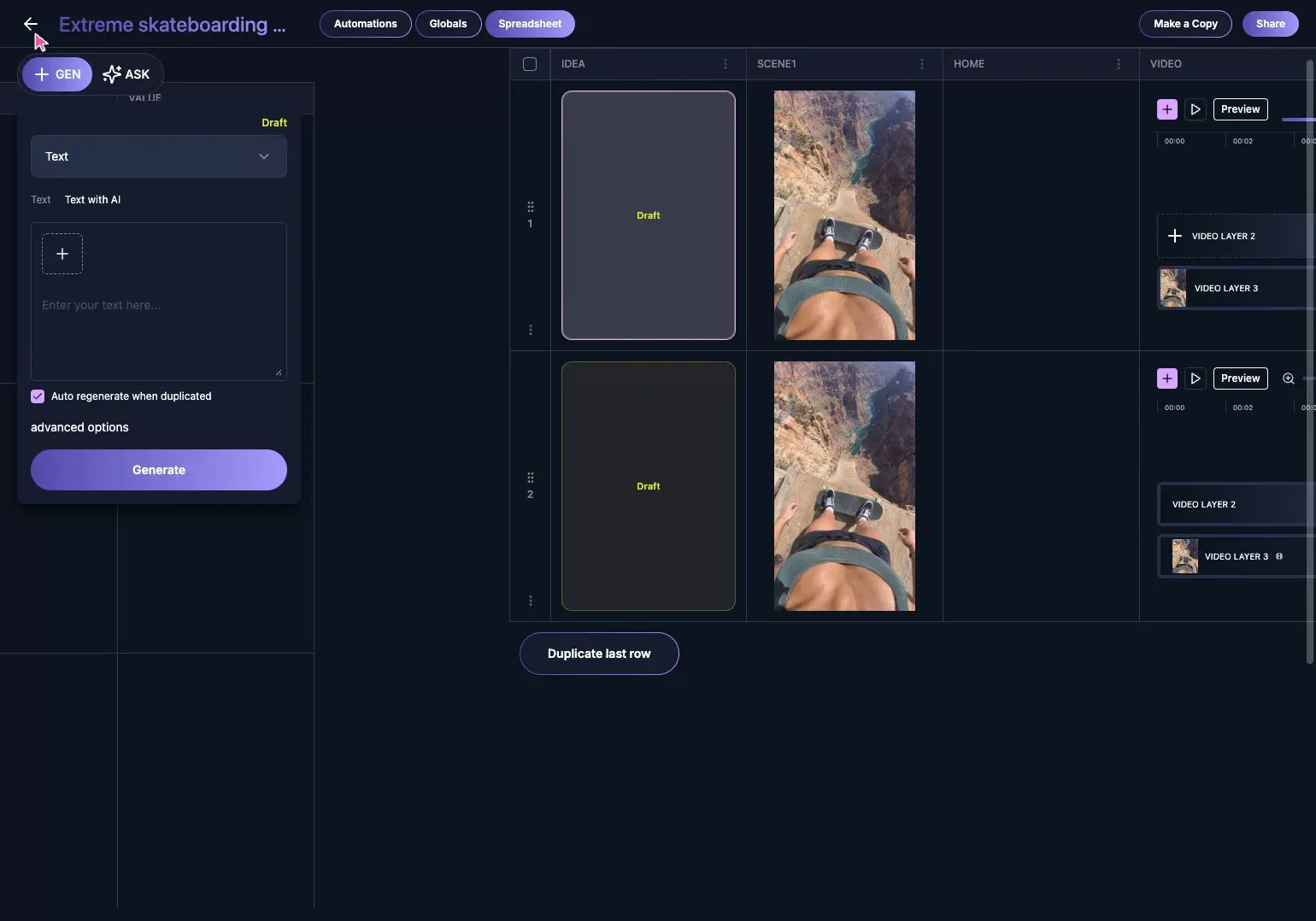
Then change the creative ingredients. In the tutorial, the second idea becomes a skateboarder dropping into a canyon at golden hour.
8. Change the prompt, generate the variation, and publish
Replace the concept-specific prompt, generate the new opening image, and let it flow through the same video structure. The result should feel related in production quality but distinct in subject, setting, action, or story.
When the final video is ready, use the publish panel to choose the destination, add post copy, publish, or download the asset.
What should change between variations?
| Keep stable | Change deliberately |
|---|---|
| Workflow structure | Subject or customer type |
| Output dimensions | Setting and action |
| Brand and quality rules | Hook and story angle |
| Model connections | Camera direction and pacing |
| Publishing process | Offer, product, or use case |
Reusing the system is efficient. Reusing every creative decision makes the posts feel duplicated. The goal is operational consistency with creative range.
Common mistakes
- Starting every video from text only. Use a controlled opening image when visual continuity matters.
- Changing every variable at once. Keep the workflow stable while testing one meaningful creative change.
- Duplicating the output instead of the system. A new row should produce a new concept, not a near-copy of the last video.
- Adding complexity before the first shot works. Validate the opening frame and initial motion before building a longer timeline.
- Treating publishing as a separate project. Keep the final asset and post controls connected to the production row.
Frequently asked questions
What is a GEN Vidsheet?
A Vidsheet is a spreadsheet-like production system where each row connects a content idea, prompts, generated media, video layers, final output, and publishing controls.
How do you keep AI videos visually consistent?
Start with a controlled opening image, use it as the video’s first-frame input, keep the model connections stable, and test motion before expanding the scene.
Can the same AI video workflow be reused?
Yes. Duplicate the working row to preserve the production structure, then change the concept, subject, setting, action, hook, and other creative inputs.
Is this the same as copying the previous video?
No. The reusable part is the workflow. The creative direction should change enough that each row produces a distinct post for a different idea, audience, or use case.
Steal the template and make it yours
Start with the working model connection, then replace the scene-specific choices: subject, location, action, lens, camera path, lighting, pacing, and story beat. The structure stays useful while the output becomes your own.
Steal the GPT Image 2.5 + Seedance 2.5 Vidsheet template, generate your first variation, and use the next row to push the concept in a different direction.
GEN helps you create 30 days of content in 30 minutes.