Steal This AI UGC Workflow to Create 30 Product Ads

Creating more product ads should not mean rebuilding the same workflow every time. This AI UGC Vidsheet connects one idea to the script, creator look, exact product image, generated video, and final export. Duplicate the row, change the idea, and the dependency chain stays intact. The result is a practical AI content automation system for producing ad variations quickly while keeping the creator and product consistent. It gives a team the speed of all-in-one AI video editing without flattening every step into one uneditable prompt.
One connected workflow, five reusable stages
What you'll learn
- How to connect one product idea to every downstream creative asset.
- When to use row variables versus global variables.
- How to keep the creator and product consistent across ad variations.
- How to duplicate the workflow without making every output look identical.
The short version
The important idea is not “generate a video.” It is “save the relationships that make the video repeatable.” Each row holds the local concept for one ad. Global variables hold reusable assets such as the creator. Creation cards reference those values directly, so changing an input updates the next generation without a download-and-reupload loop.
That is the difference between a one-off AI clip and an AI content automation workflow. You still review expensive image and video generations, but the setup work is already done.
How to build the workflow step by step
1. Make your own copy of the template
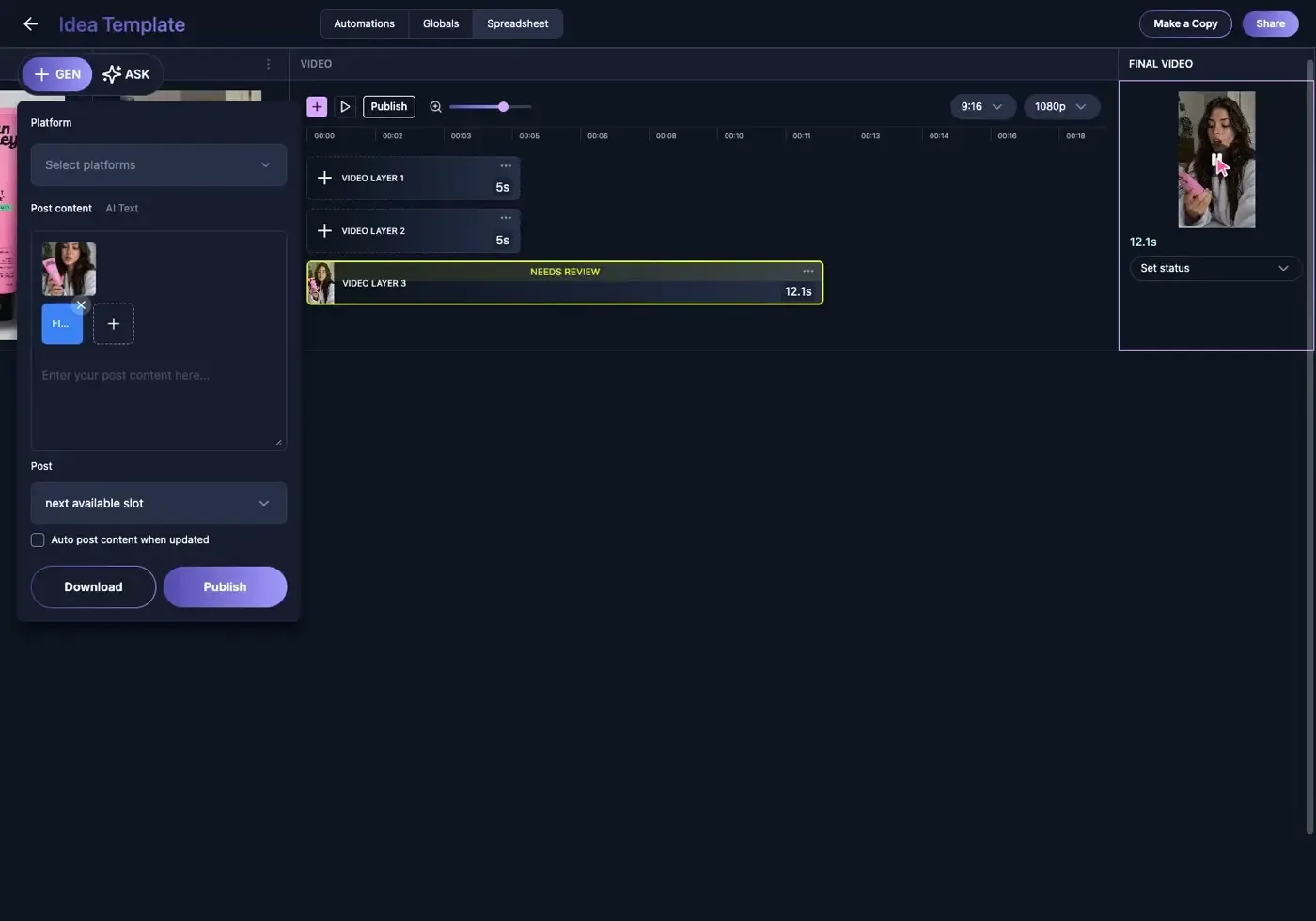
Open the public Vidsheet and choose Make a Copy. Work in the copy so the original remains a clean starting point. The copied sheet already contains the columns, variables, creation cards, video layers, and dependencies used in the tutorial.
2. Start from the finished ad and trace backward
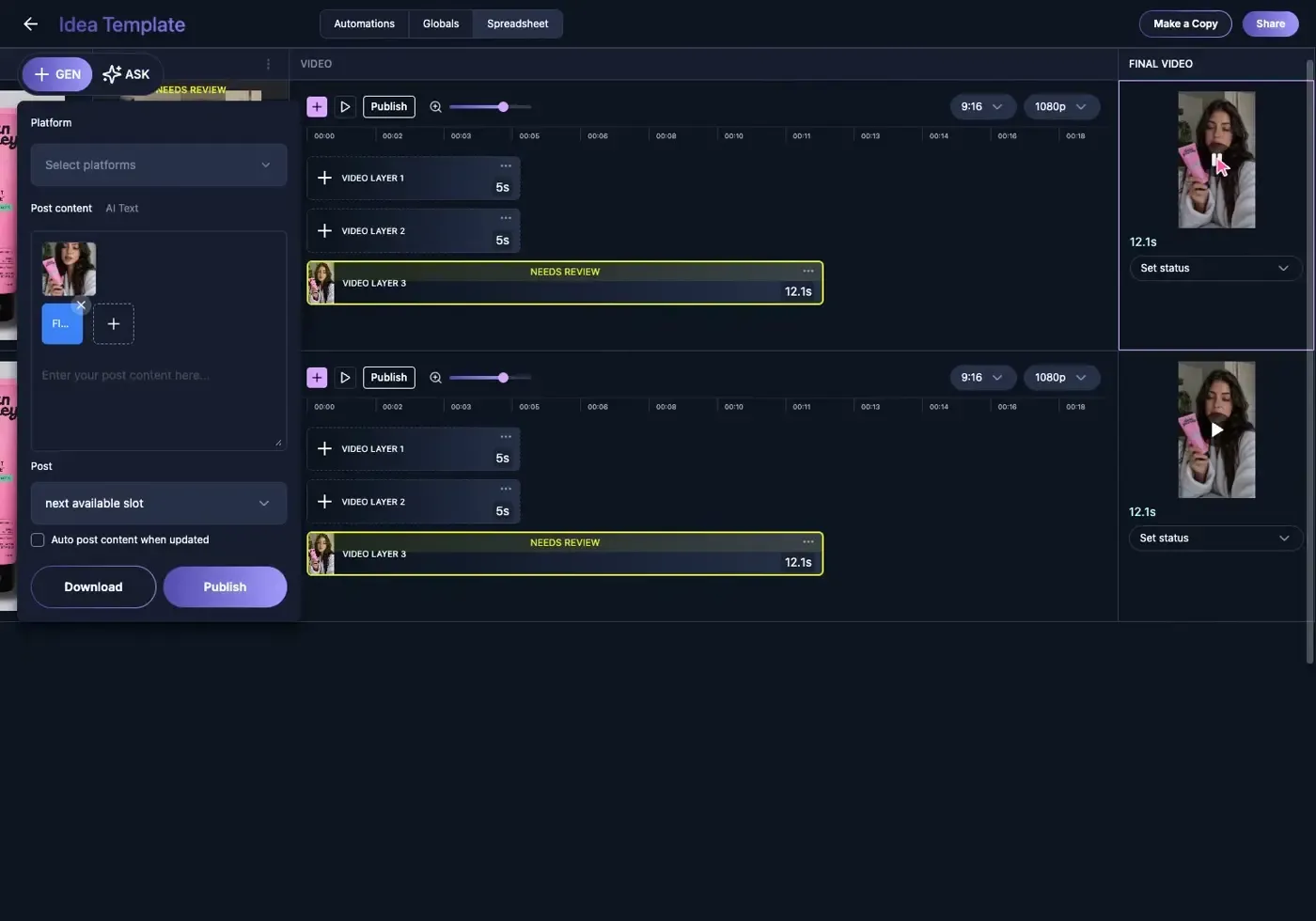
The FINAL VIDEO is the publishable output, but it is also a map of everything upstream. Its video layer points to the generated VIDEO cell. That cell depends on the creator LOOK, the SCRIPT, and the PRODUCT reference. Tracing backward prevents random prompts from accumulating without a clear job.
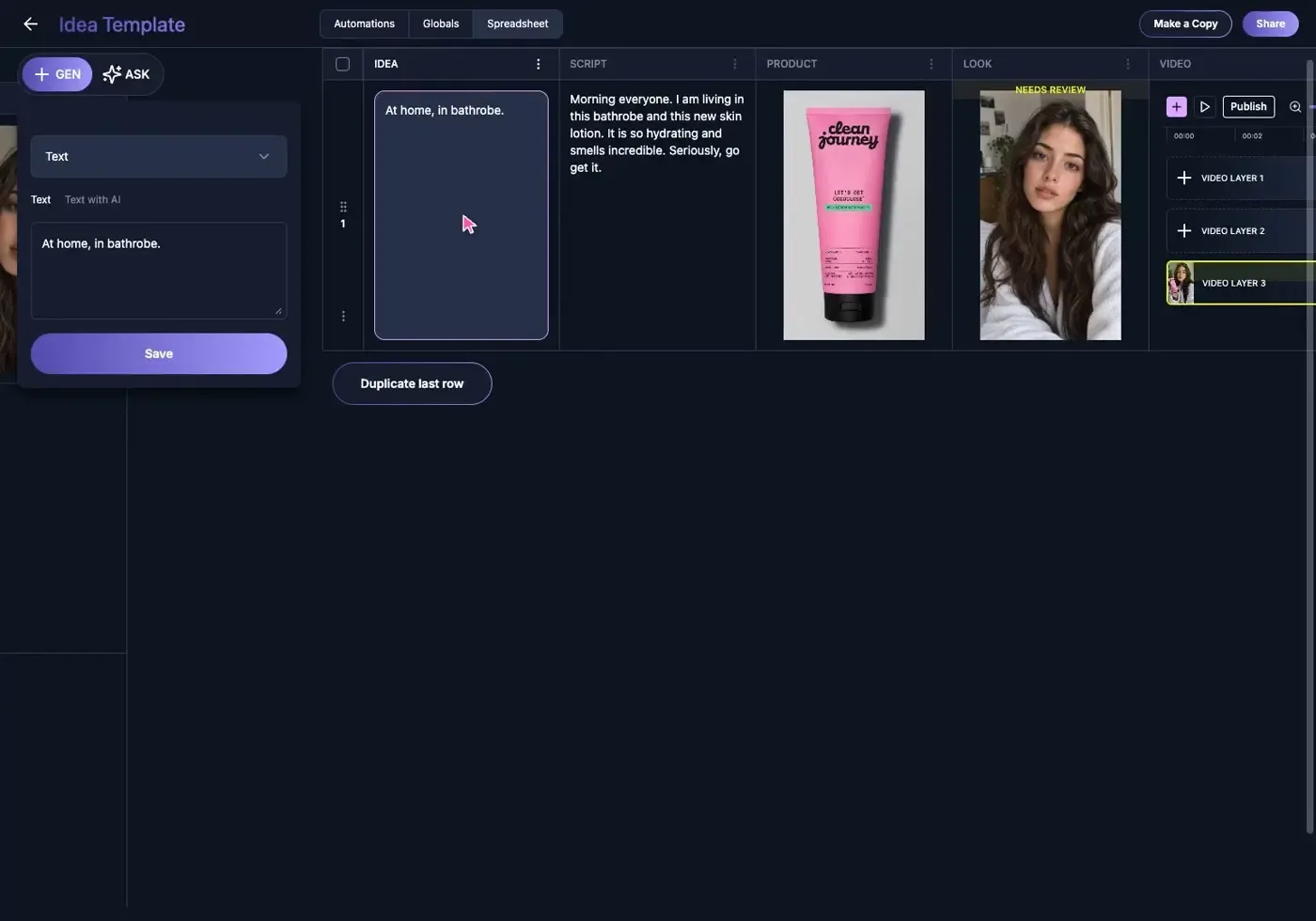
3. Connect the script to the row's idea
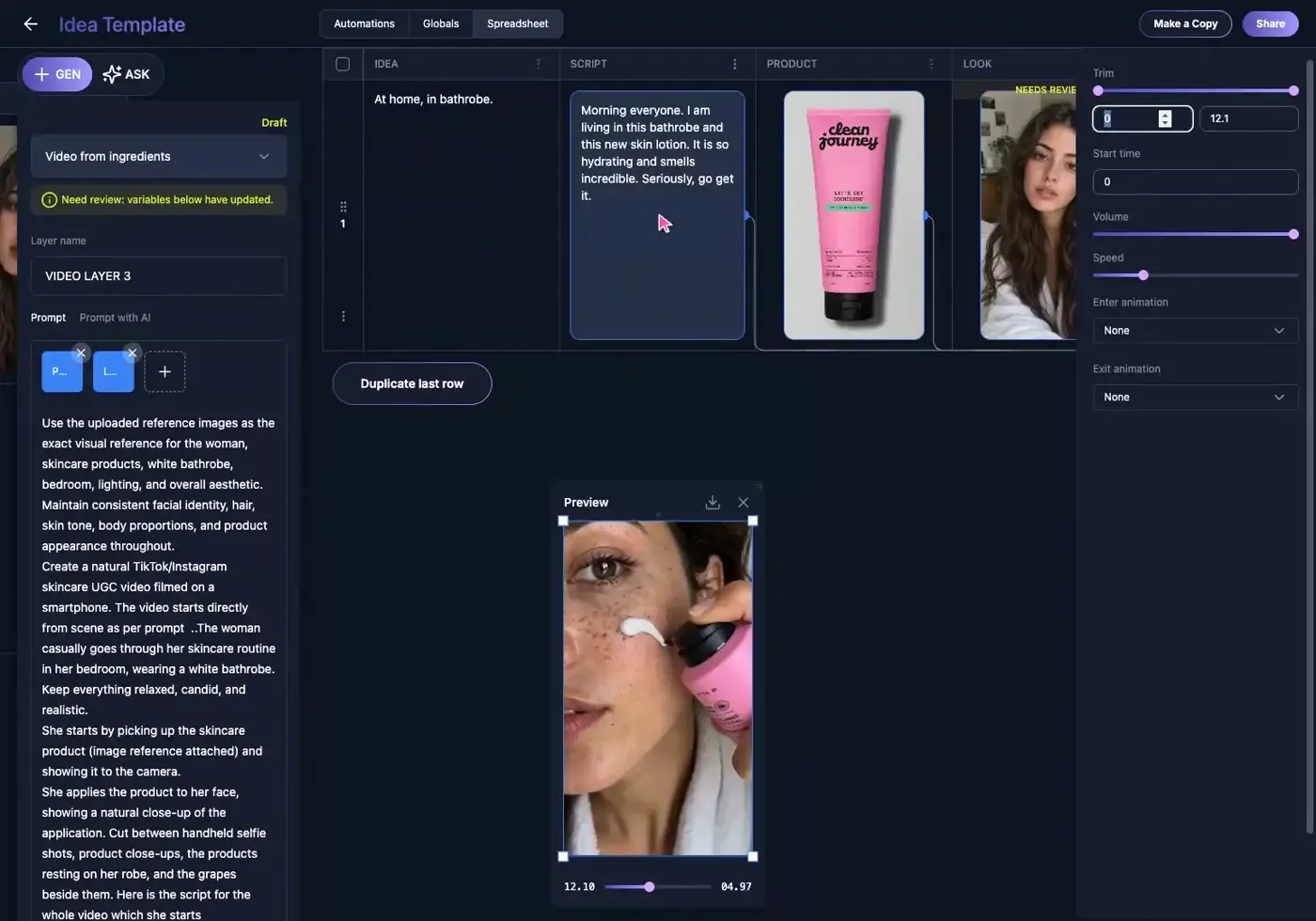
The SCRIPT creation card should reference the IDEA cell instead of containing a pasted copy of the idea. Type {{ in the field, select IDEA, and save. The reference stays live, which means a duplicated row can carry the same relationship while using a different concept.
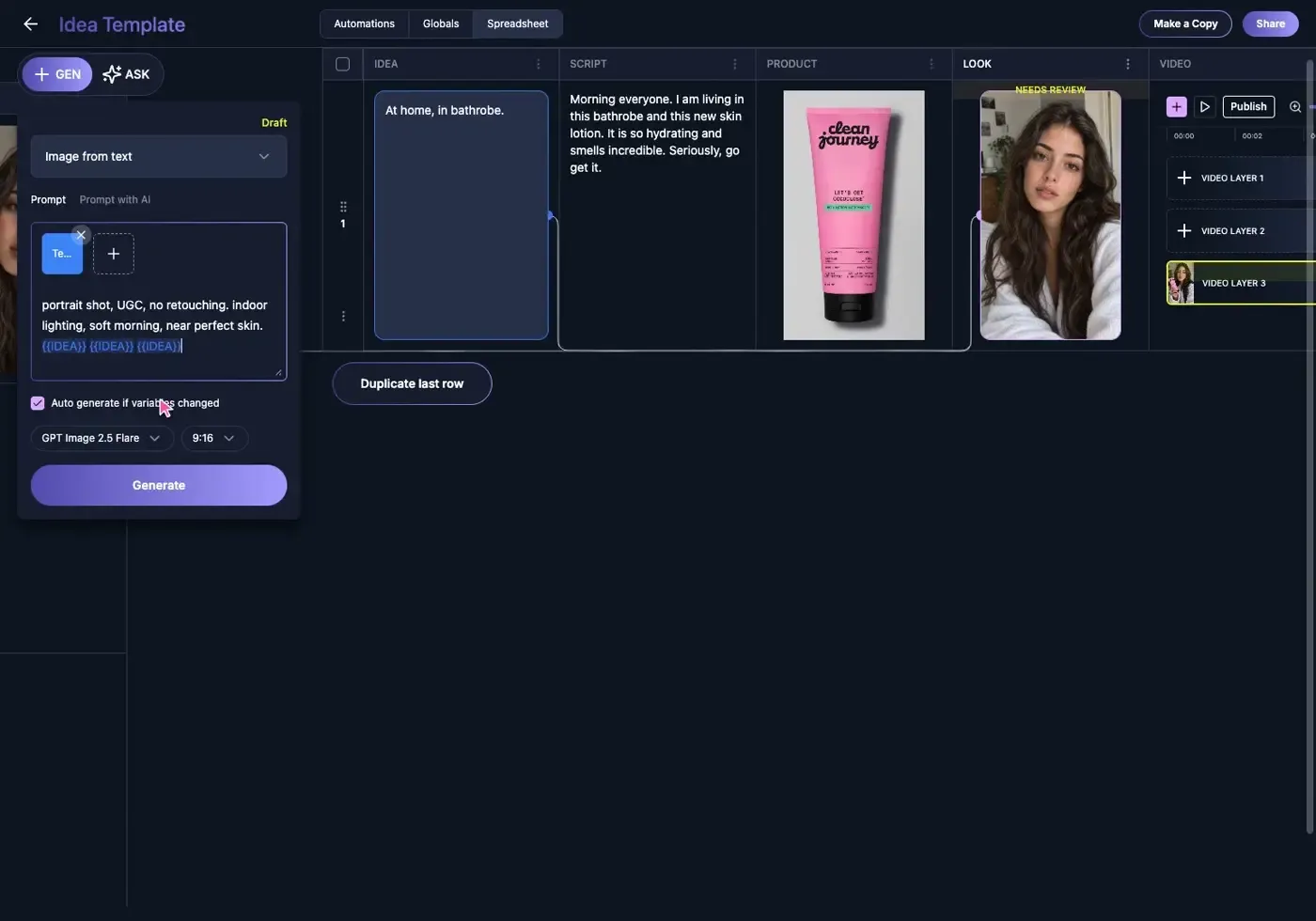
4. Generate a creator look that belongs to this ad
The LOOK card combines the local idea with the reusable creator identity. In this example, the image step produces the starting portrait used by the video. Change the scene and styling instructions enough to create a new ad concept; keep the identity reference stable enough that the campaign still feels like one creator.
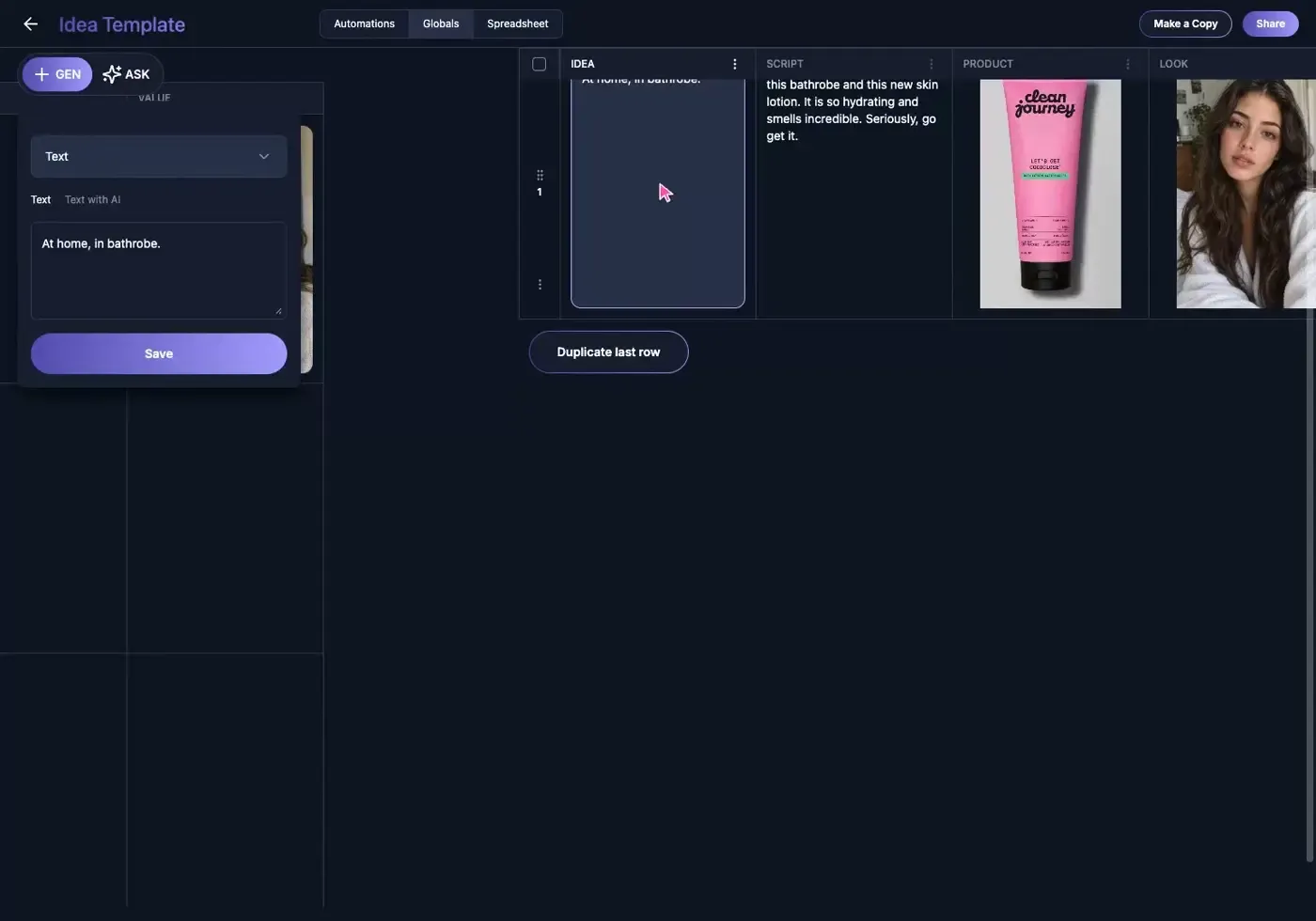
5. Separate global assets from row variables
Use a global variable for an asset that should survive every row, such as the creator Tess. Use row variables for values that define one variation, such as IDEA, SCRIPT, and LOOK. This separation lets the campaign rotate scenes, hooks, and customer angles without accidentally replacing the identity anchor.
6. Feed the generated look into the video's first frame
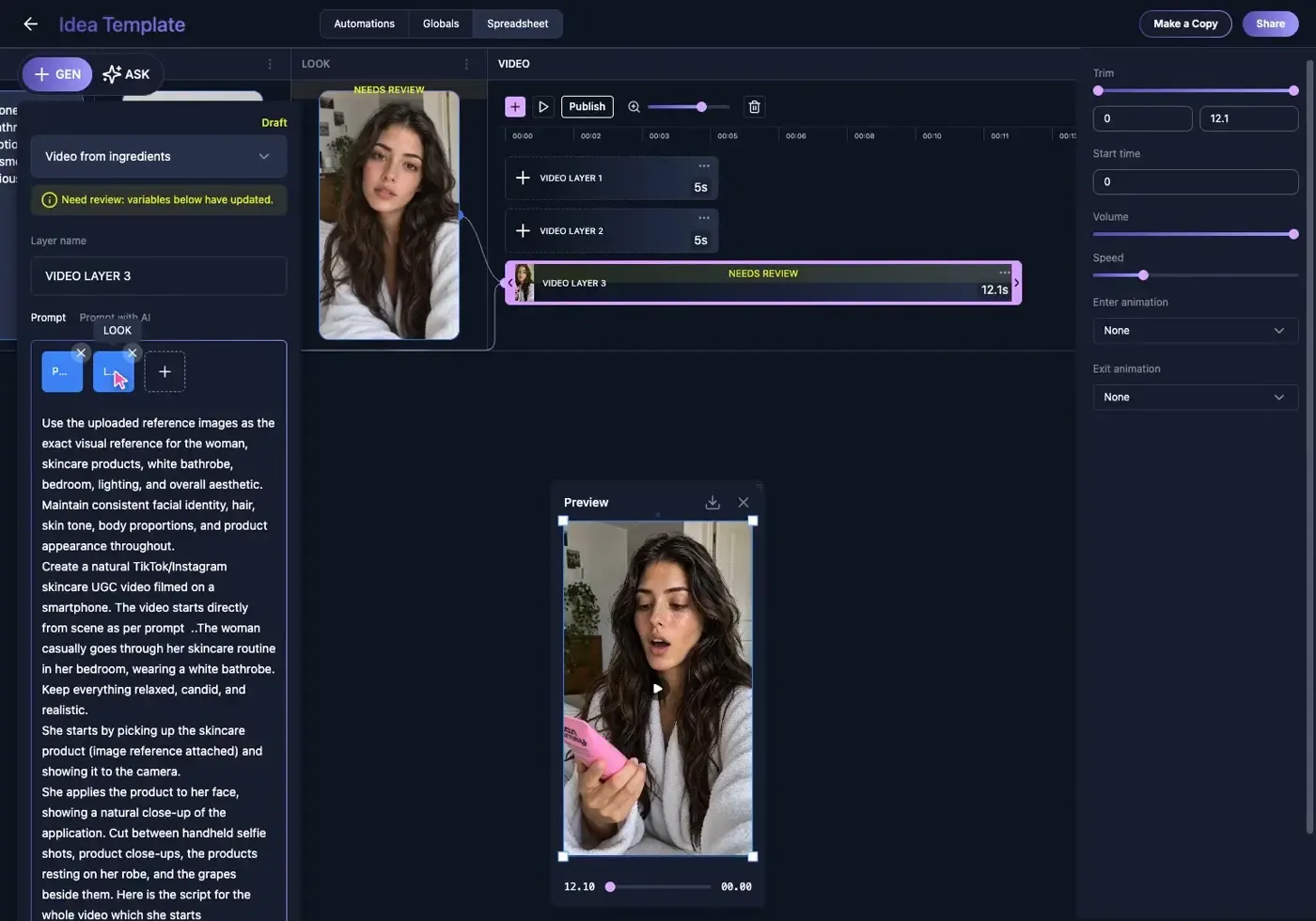
The VIDEO creation card references LOOK as its starting image. This keeps the image and motion steps connected inside the same workspace. There is no need to export an image, rename it, upload it into another tool, and remember which version belongs to which ad.
7. Add the exact product packshot
The PRODUCT cell supplies the real package reference. That matters for branded ads: a plausible pink tube is not the same as the correct product. Keep the packshot separate from the creator look so it can be replaced, reviewed, or reused without rewriting the whole prompt.
8. Duplicate the row to create the next variation
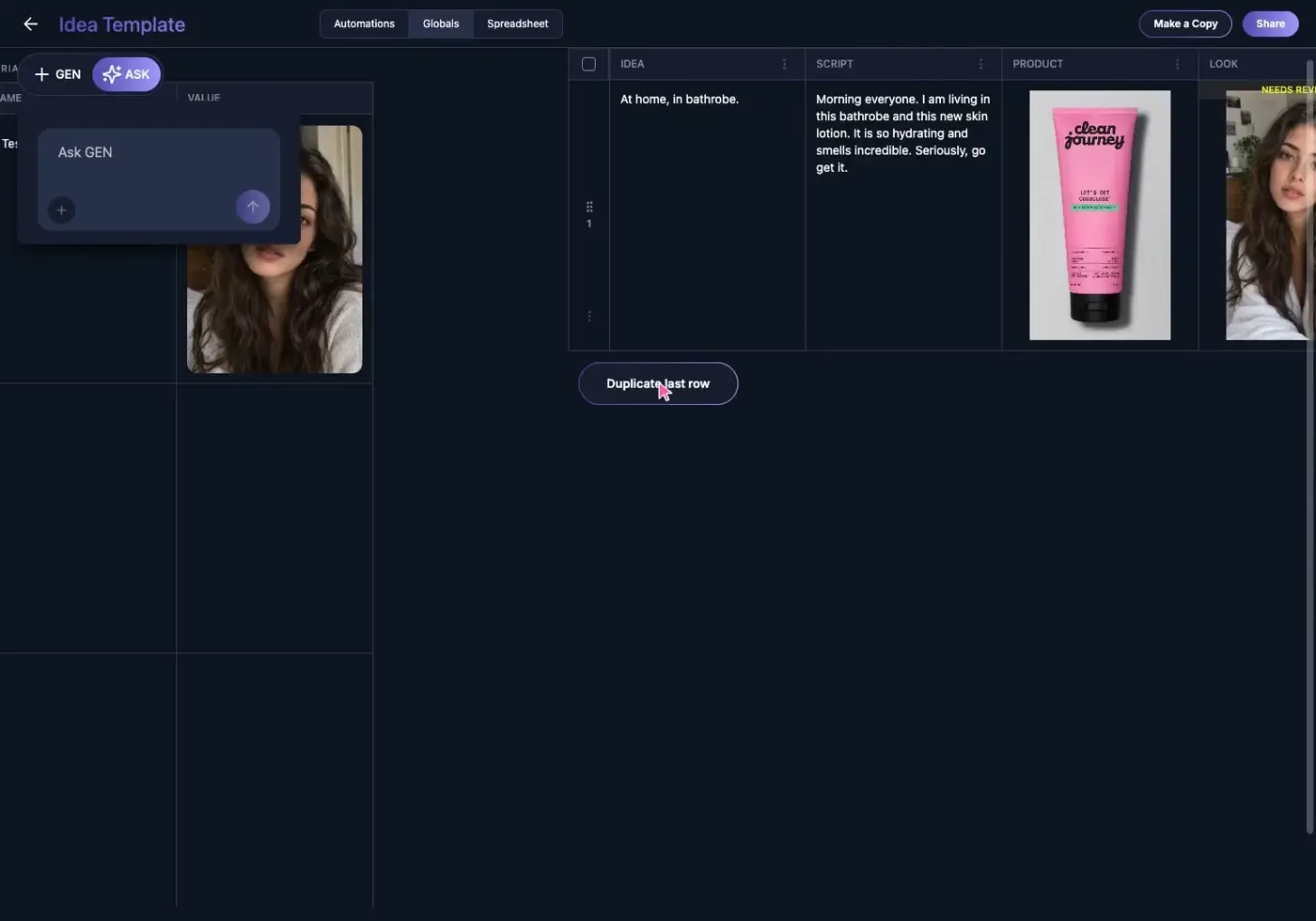
Duplicate the completed row, replace the IDEA, then regenerate the inexpensive text and image steps before committing credits to video. The new row keeps the same dependency structure, but the creative should still change: rotate the hook, scene, customer type, product benefit, framing, or creator delivery so the batch does not look like thirty copies.
What to automate—and what to review
| Stage | Default | Why |
|---|---|---|
| Idea and script | Auto-generate | Fast and inexpensive to iterate. |
| Creator look | Review | Identity, product, and scene must be right before motion. |
| Video and final export | Approve deliberately | These are the expensive steps and the public-facing result. |
Common mistakes
- Pasting text instead of inserting a variable. The copy looks right once, but the relationship breaks on the next row.
- Making every value global. Row-specific concepts then leak into unrelated ad variations.
- Automating video before reviewing the look. A weak first frame becomes an expensive weak clip.
- Duplicating the visual without changing the creative angle. Reuse the system, not the same ad.
Frequently asked questions
What is an AI UGC workflow?
It is a repeatable system for creating creator-style product content. In this template, the workflow connects the idea, script, creator look, product reference, generated video, and final export.
How does this help create 30 product ads?
You configure the relationships once, then duplicate the row for each variation. Every new row can test a different hook, scene, customer segment, or benefit while preserving the production structure.
Is this the same as an all-in-one AI video editor?
It covers more than editing. The Vidsheet keeps ideation, asset generation, video creation, review, and publishing connected, while each cell remains independently editable.
GEN helps you create 30 days of content in 30 minutes. Start with the working system, change the creative inputs, and keep the dependency map that makes the process repeatable.